
This guide covers reading a calendar and scoping it, then creating, changing, duplicating, un-clashing and deleting a booking. The cyan ring in each screenshot marks the control being used in that step.
Every screenshot here is captured automatically by driving the real Pool Relay application in a browser. When the product changes, the guide is regenerated and re-checked as part of the release, so what you see below is what the app does.
1Open the calendar
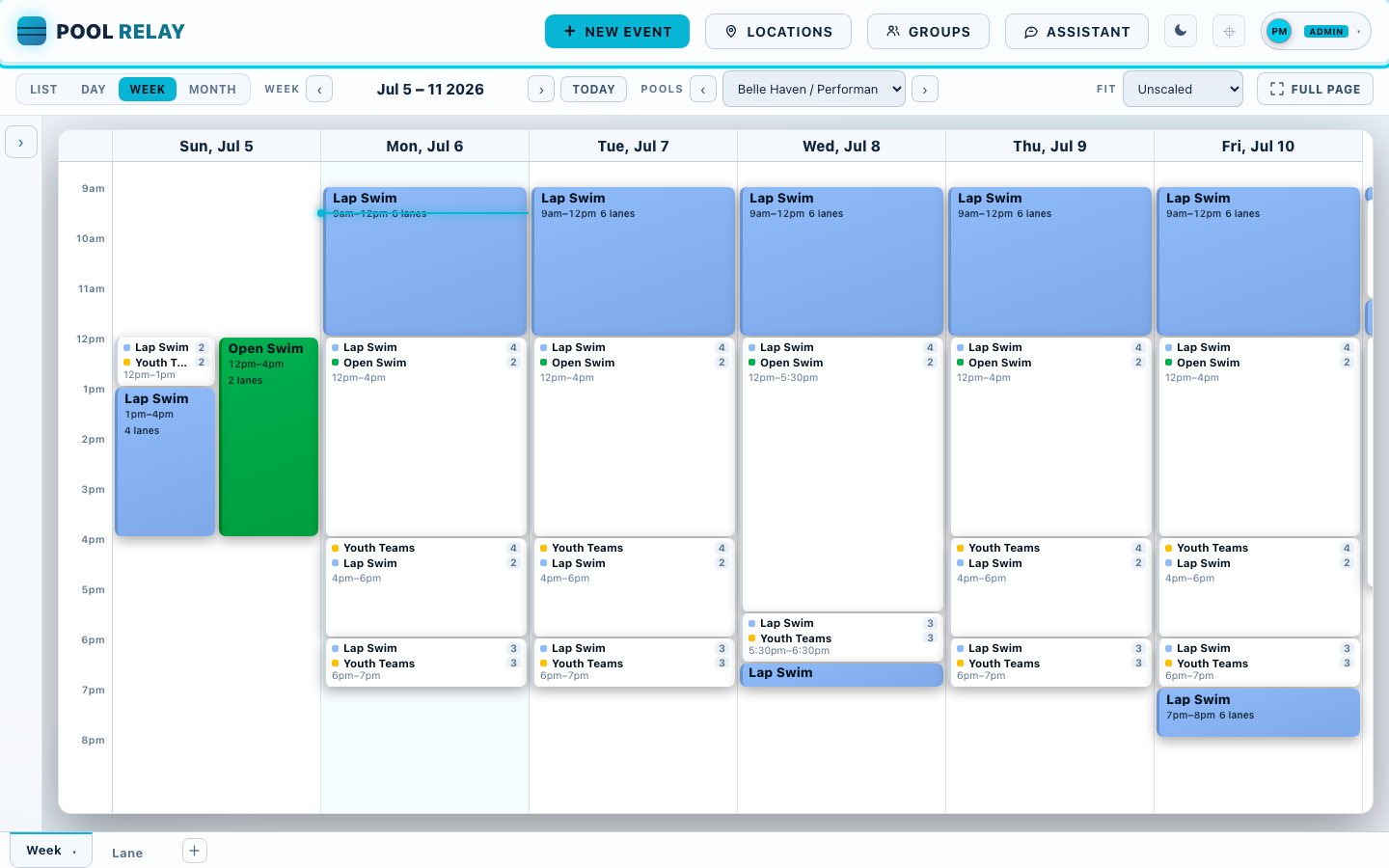
Sign in and open poolrelay.com/app. This is Belle Haven Pool's published summer schedule — a real, full week on the Performance Pool. Every block says what it is, when it runs, and how many lanes it takes, because how much water a booking uses is the thing you need to know at a glance. The top bar carries the actions you use most: + New event, the Locations and Groups hierarchy editors, the Assistant, the light/dark toggle, and your account chip on the right.
2Choose a calendar tab
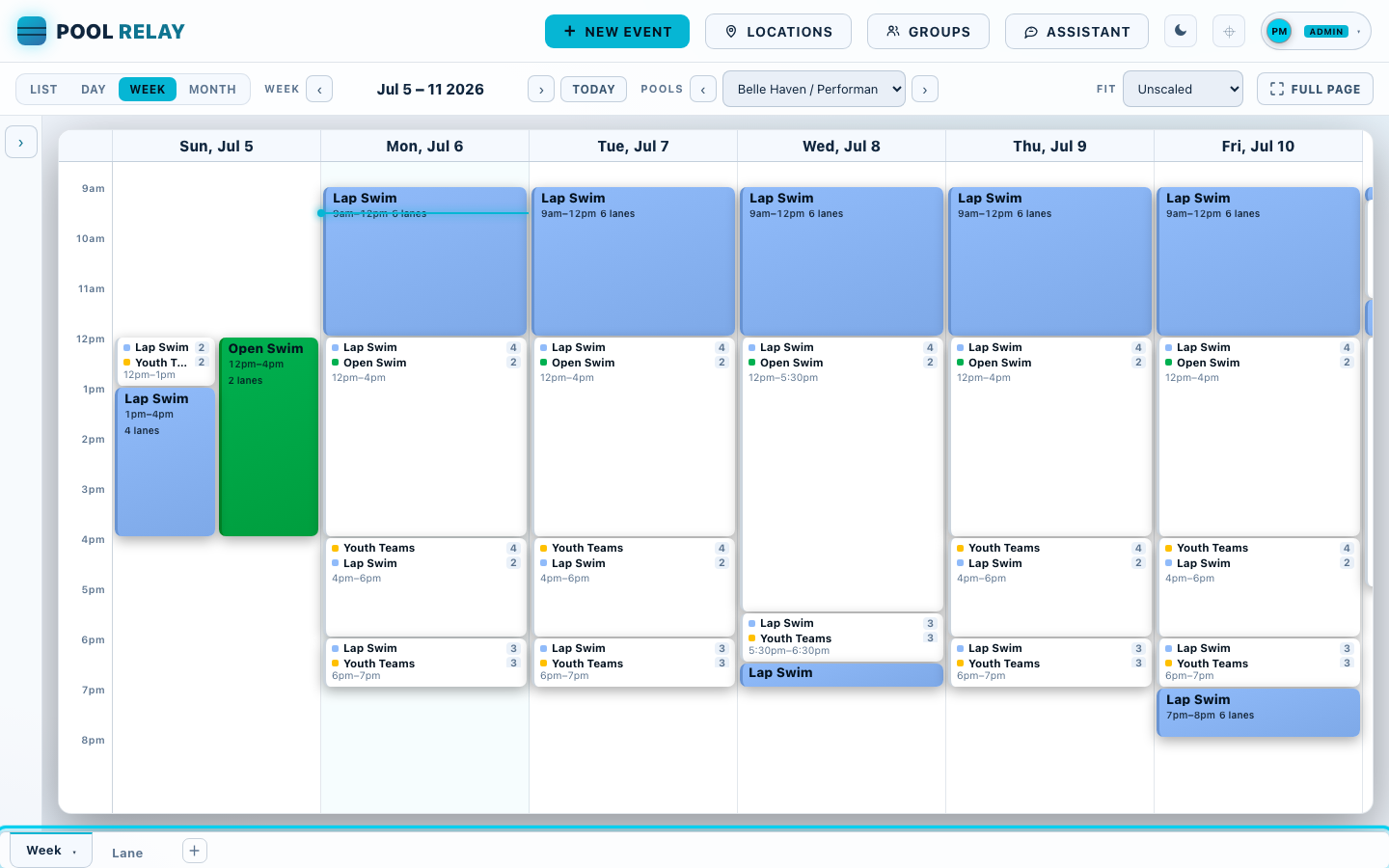
Every calendar is a tab along the bottom. Nothing is hard-wired: Week and Lane are ordinary saved tabs, each one a saved arrangement of Time, Location and Group levels. Click a tab to switch to it, + to build a new one, or the ▾ caret on a tab to rename, duplicate, choose who can see it, or delete it. A tab belongs to whoever made it: only its owner reconfigures or deletes it, and everyone else duplicates it to get their own copy.
3Move through time
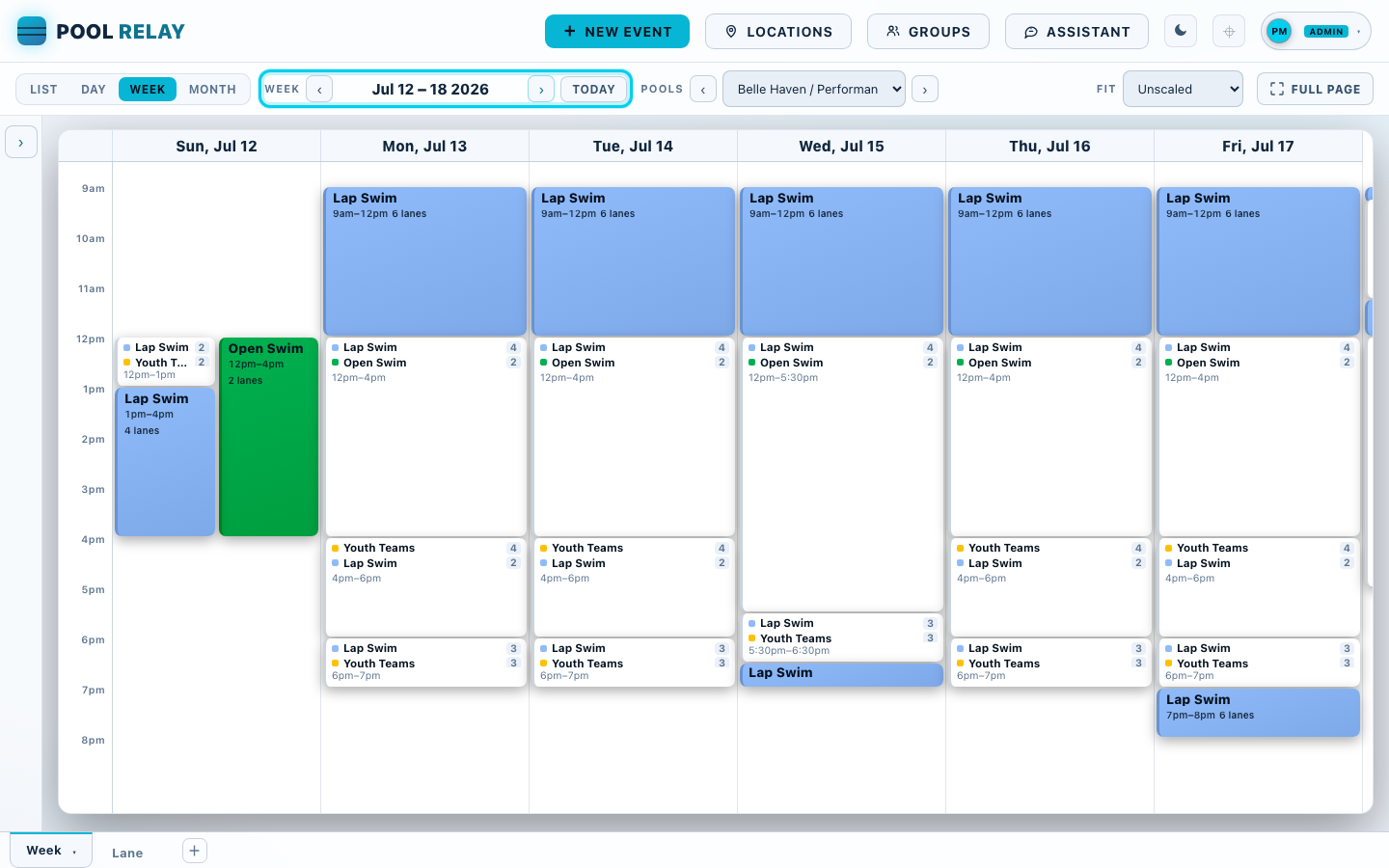
The bar above the calendar holds the tab's Page Filters. The Time filter sets the date window — this tab shows one Week — and the ‹ › arrows step it forward and back. Today jumps straight back to the current week.
4Narrow the calendar to one pool
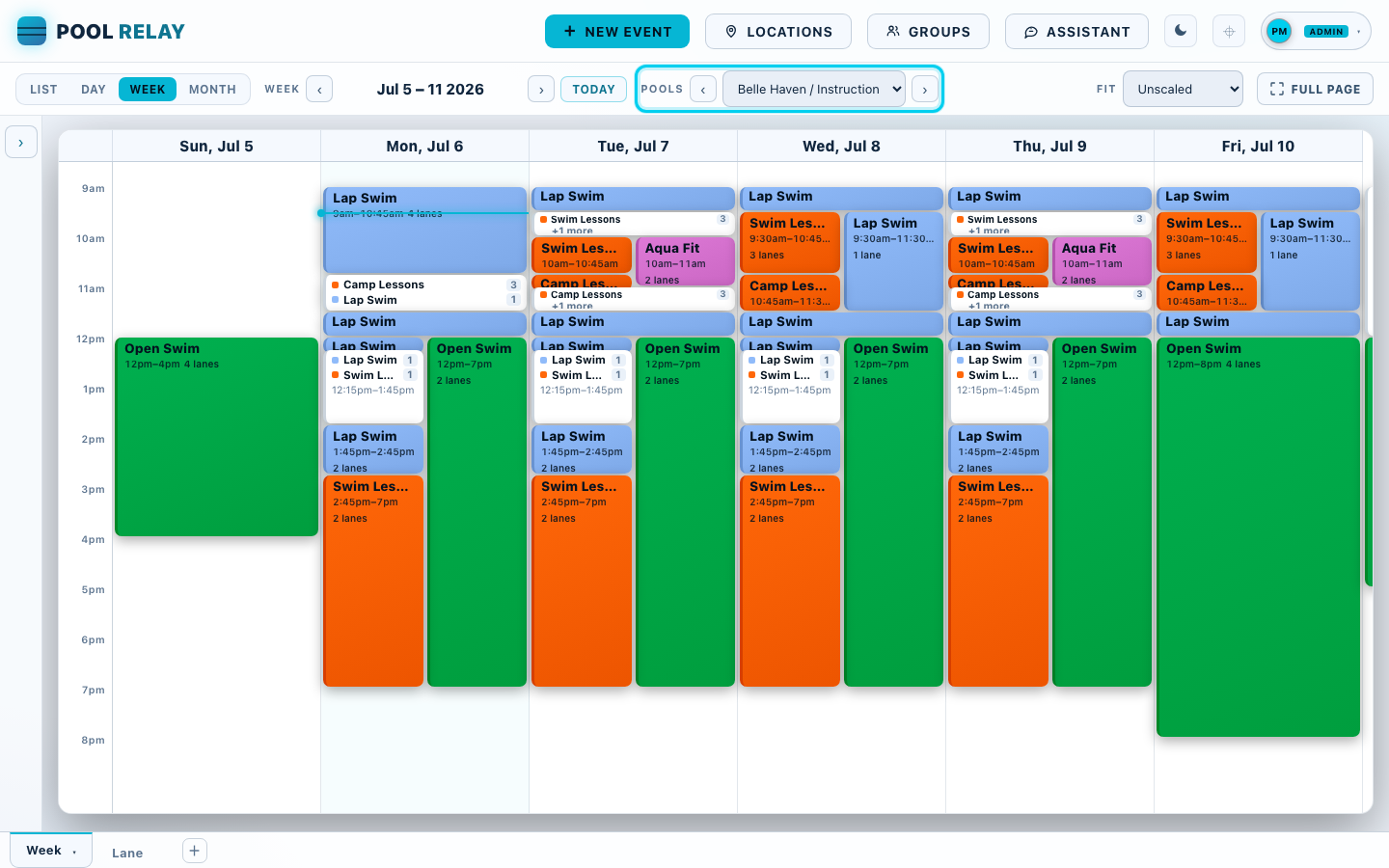
Press Today to come back, then use the Pools filter to scope what you see — switching from the Performance Pool to Belle Haven's Instructional Pool shows that pool's own program of lessons, camps, aqua fit and open swim. Conflicts are scoped the same way, so a pool-filtered tab never flags another pool's overlap.
5Switch to the Lane tab
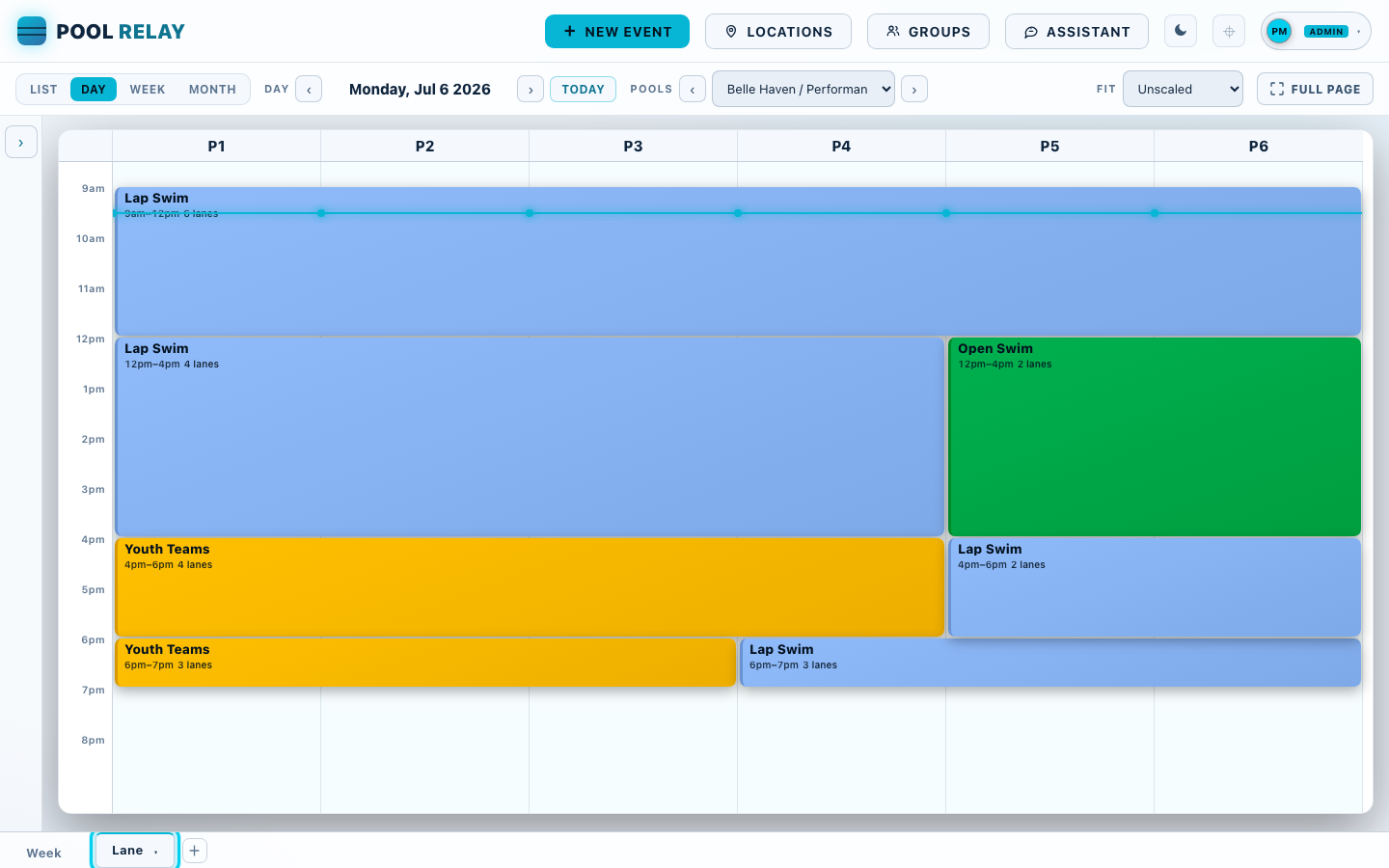
Click the Lane tab. Instead of a column per day, this tab puts a column per lane, for one pool on one day. Now you can see how the water is actually divided: lap swimmers across all six lanes in the morning, then lanes 1–4 for laps and 5–6 for open swim through the afternoon, then the youth teams taking lanes 1–4 at four o'clock.
6Fit the calendar to the window
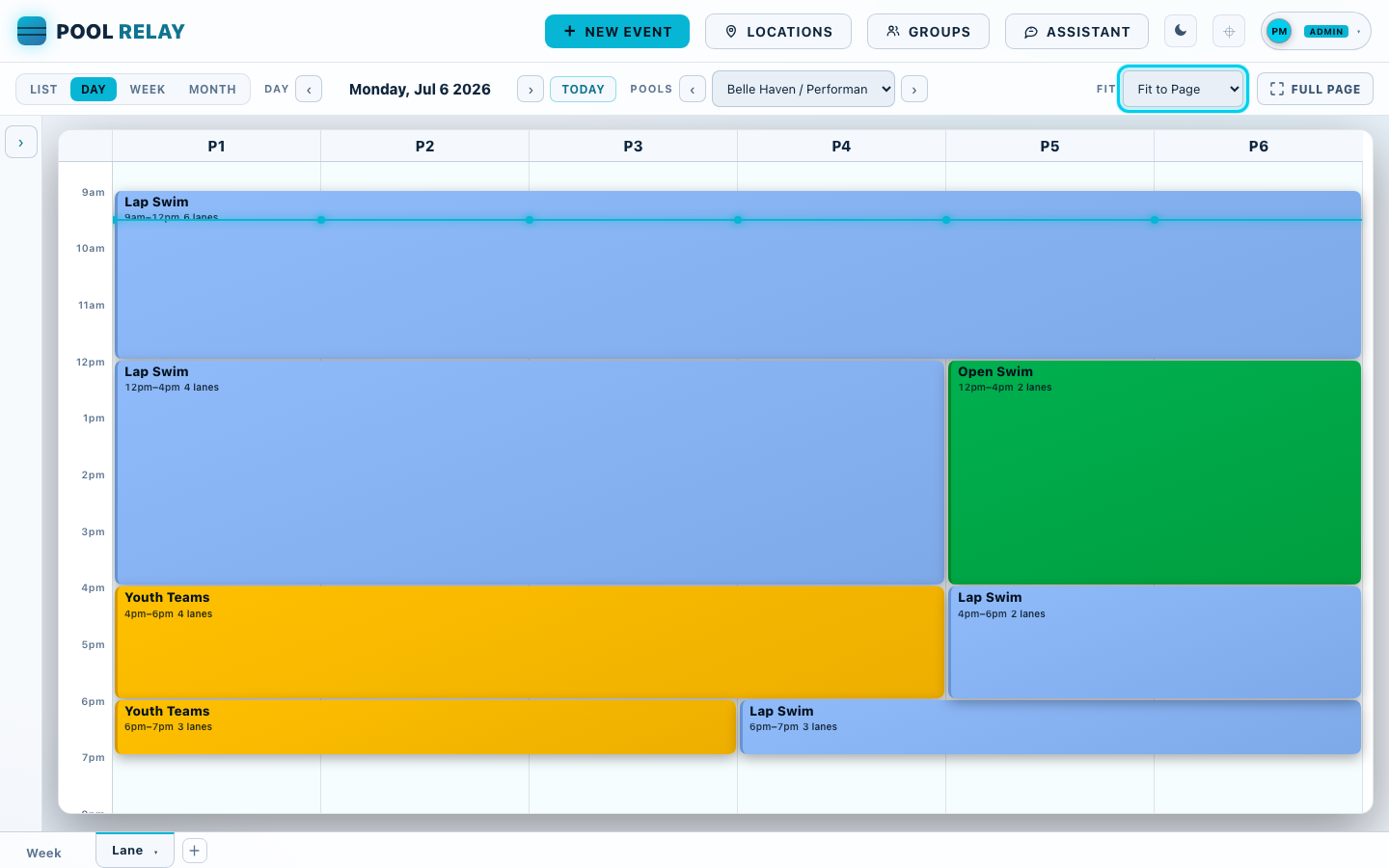
Fit resizes the grid itself — real columns and real rows, never a zoom, so text stays at its normal size. Fit to Page puts the whole day on screen at once, which is what you want when the pool is this full. It is a viewer control: your choice never changes the shared tab for anyone else.
7Make room for a new program
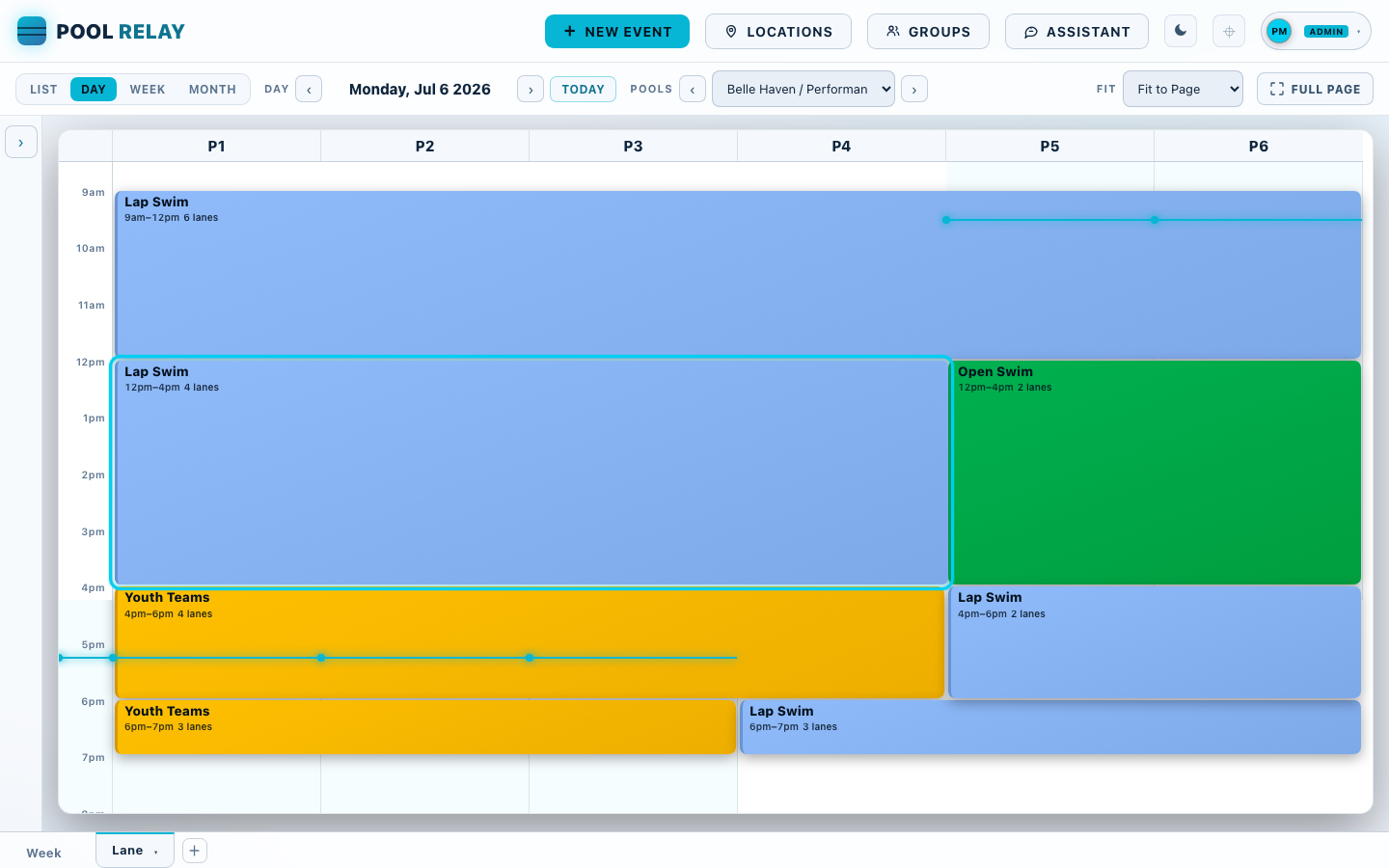
A triathlon squad asks for two lanes on Monday afternoon. The pool is fully booked, so the water has to come from somewhere: lap swim holds lanes 1–4 from noon until four. Click that block to open it.
8Shorten it
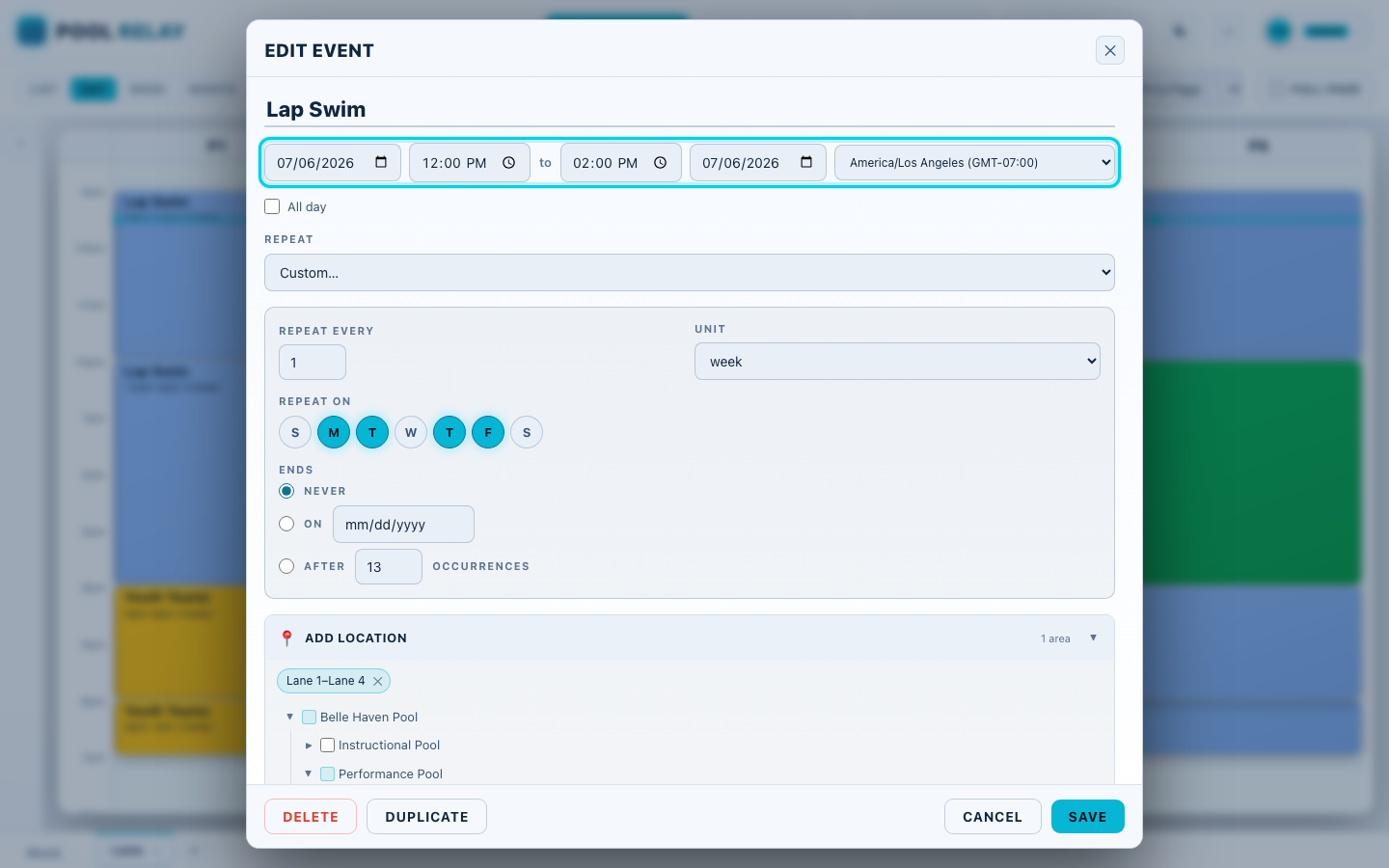
The booking opens in the editor. Bring the end time back from 4pm to 2pm, freeing the last two hours. The date and time row reads left to right — Start date · Start time · to · End time · End date · Time zone — and changing the start would carry the end along with it to keep the duration, as Google Calendar does, until you set an end yourself.
9Change one day, not every week
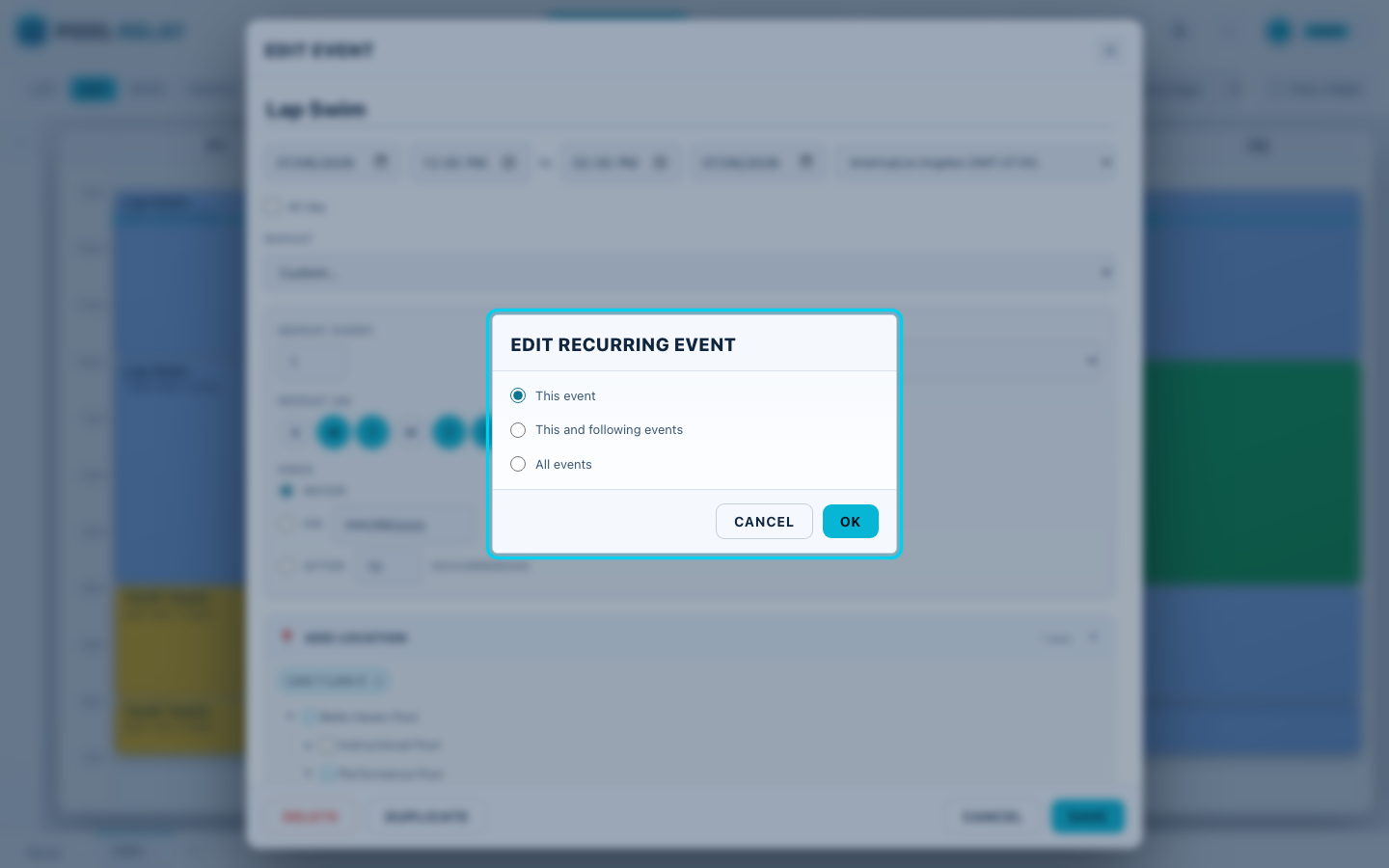
Lap swim repeats every weekday, so Save asks what you meant: just this Monday, this and every following one, or the whole series. Choose This event — the squad only needs this week. Pool Relay edits the occurrence you clicked, leaving the rest of the series exactly as published.
10See the water you just freed
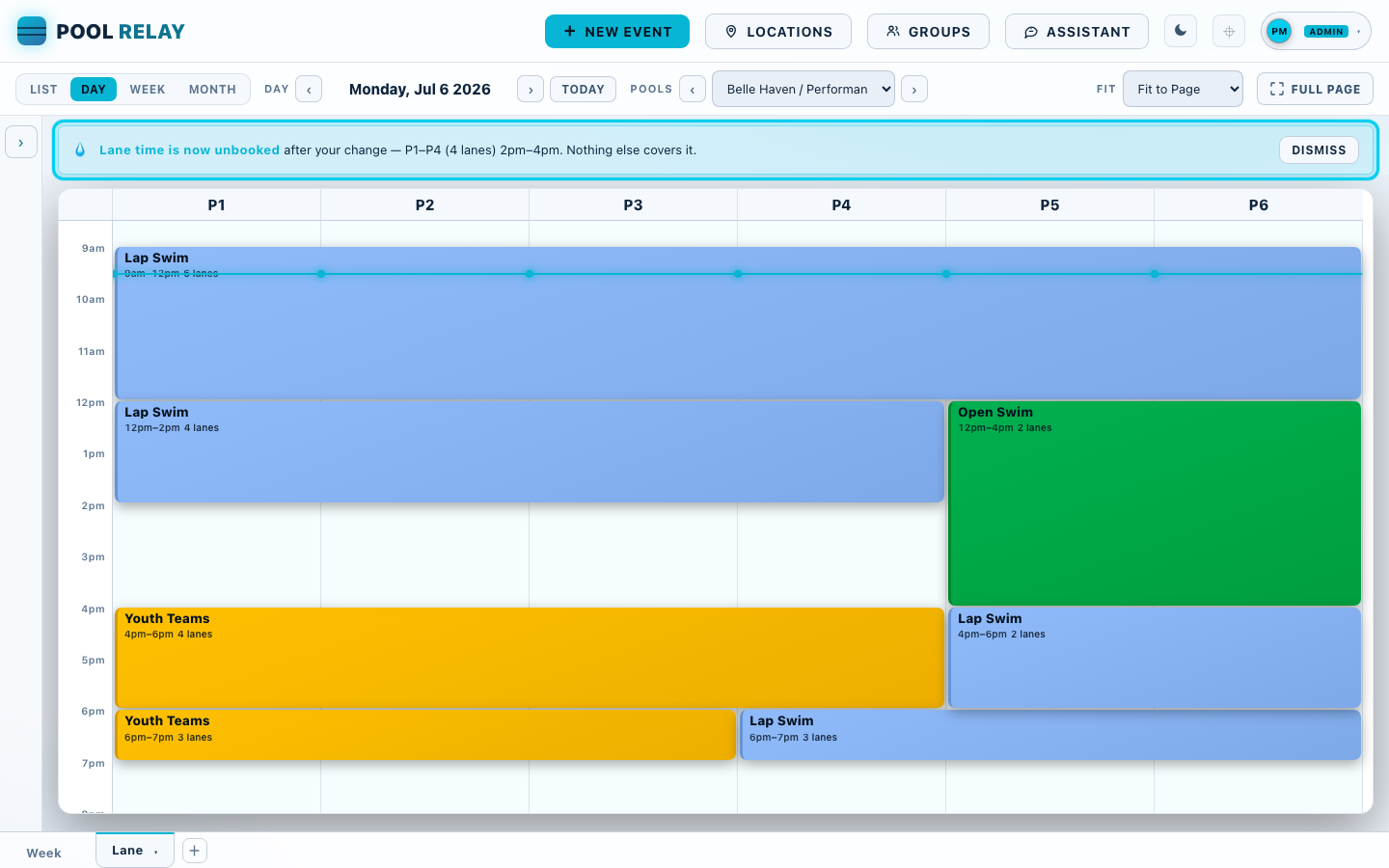
Pool Relay says so immediately: lanes P1 to P4, from 2pm to 4pm is now unbooked and nothing else covers it. This is the warning nobody else can give you — a double booking has a second booking to notice it, but idle water has nobody. Shorten a session, drop a lane, cancel a session, and Pool Relay tells you exactly what fell empty.
11Book the water
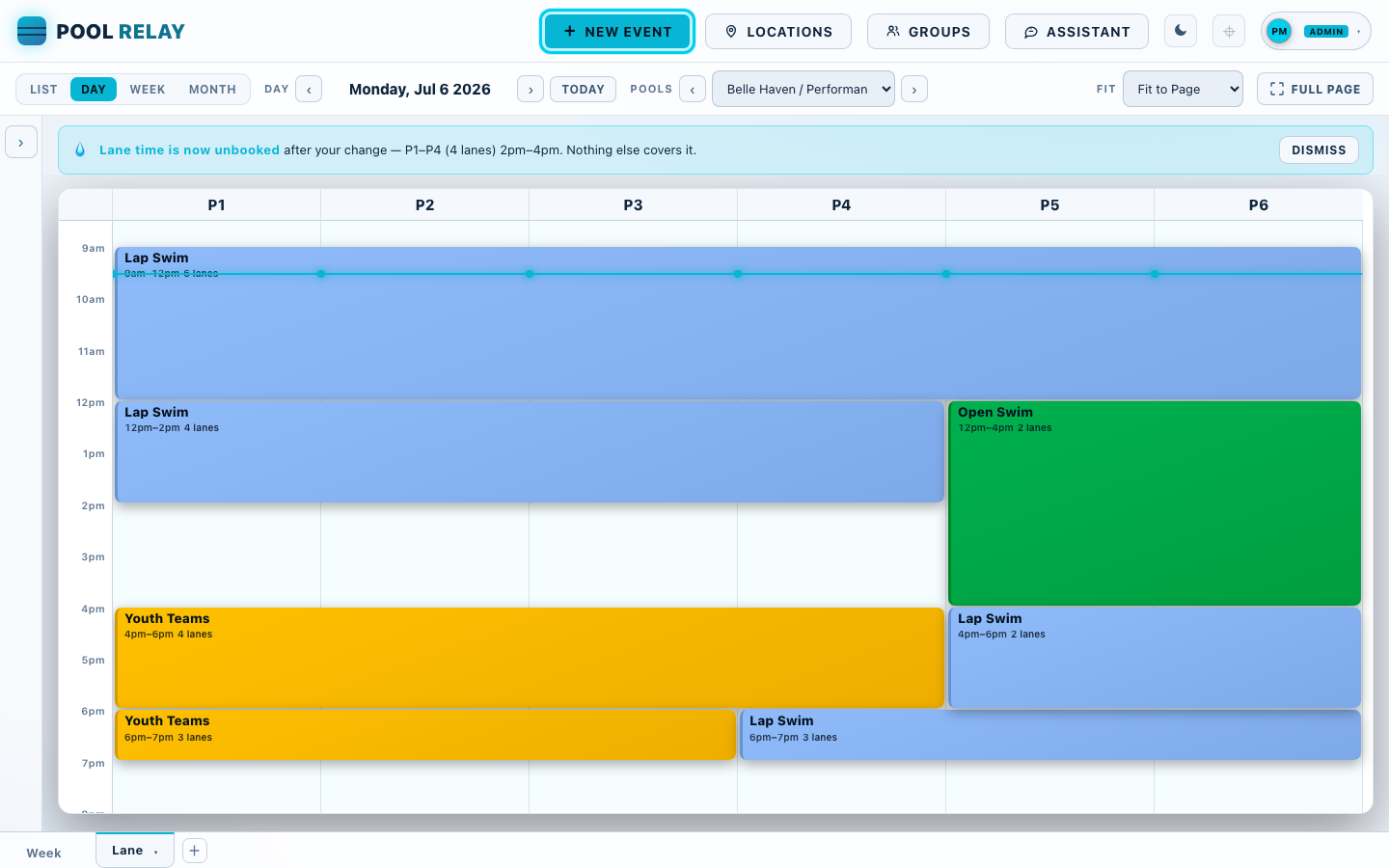
Now give the freed water to the squad. Click + New event. (Clicking an empty patch of the calendar does the same thing and fills in the time you clicked.)
12Name it and set the time
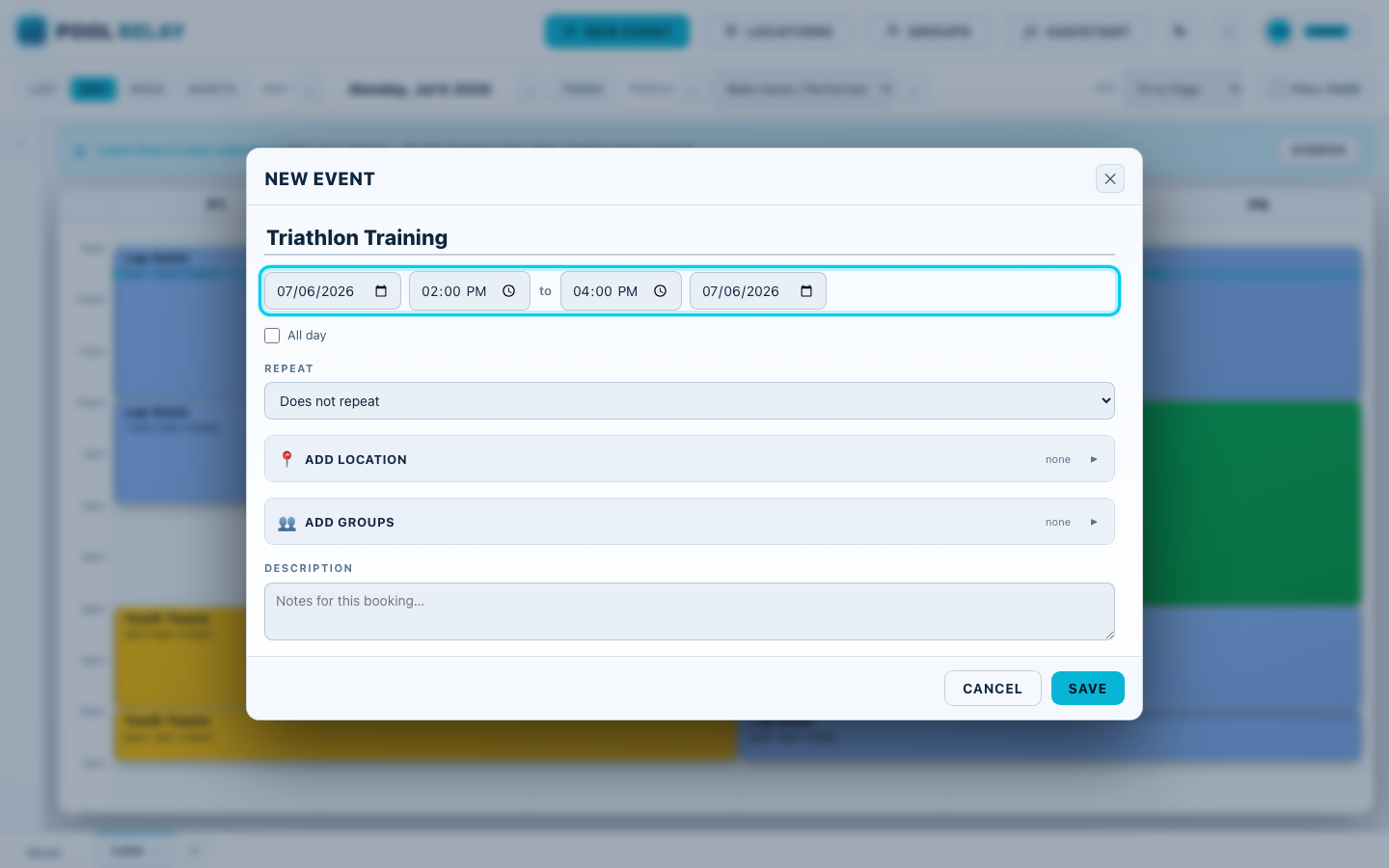
The editor opens on a blank booking. Give it a name — Triathlon Training — and set it to run from 2pm to 4pm on Monday, 6 July 2026: exactly the window lap swim gave up. Repeat below would turn this into a weekly series if the squad were coming every week.
13Choose the lanes
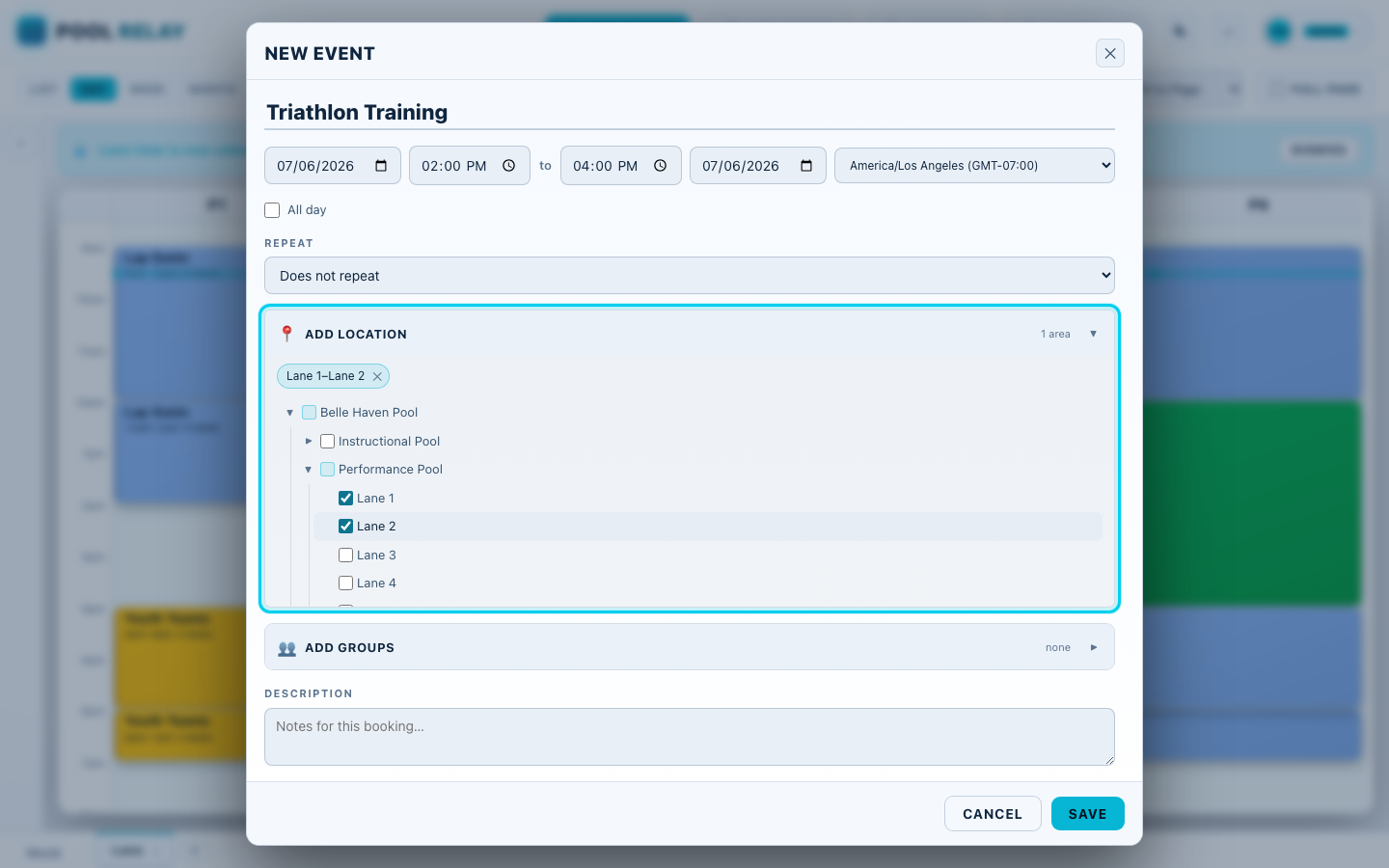
Open 📍 Add location and walk down the hierarchy — Belle Haven Pool → Performance Pool → lane — ticking Lane 1 and Lane 2. A pool split into configurations, such as long course and short course, adds one more level here. A parent with only some children ticked shows a shaded mixed checkbox, so a two-lane booking never looks like a whole-facility booking, and consecutive lanes collapse into a single range chip.
14Choose the group
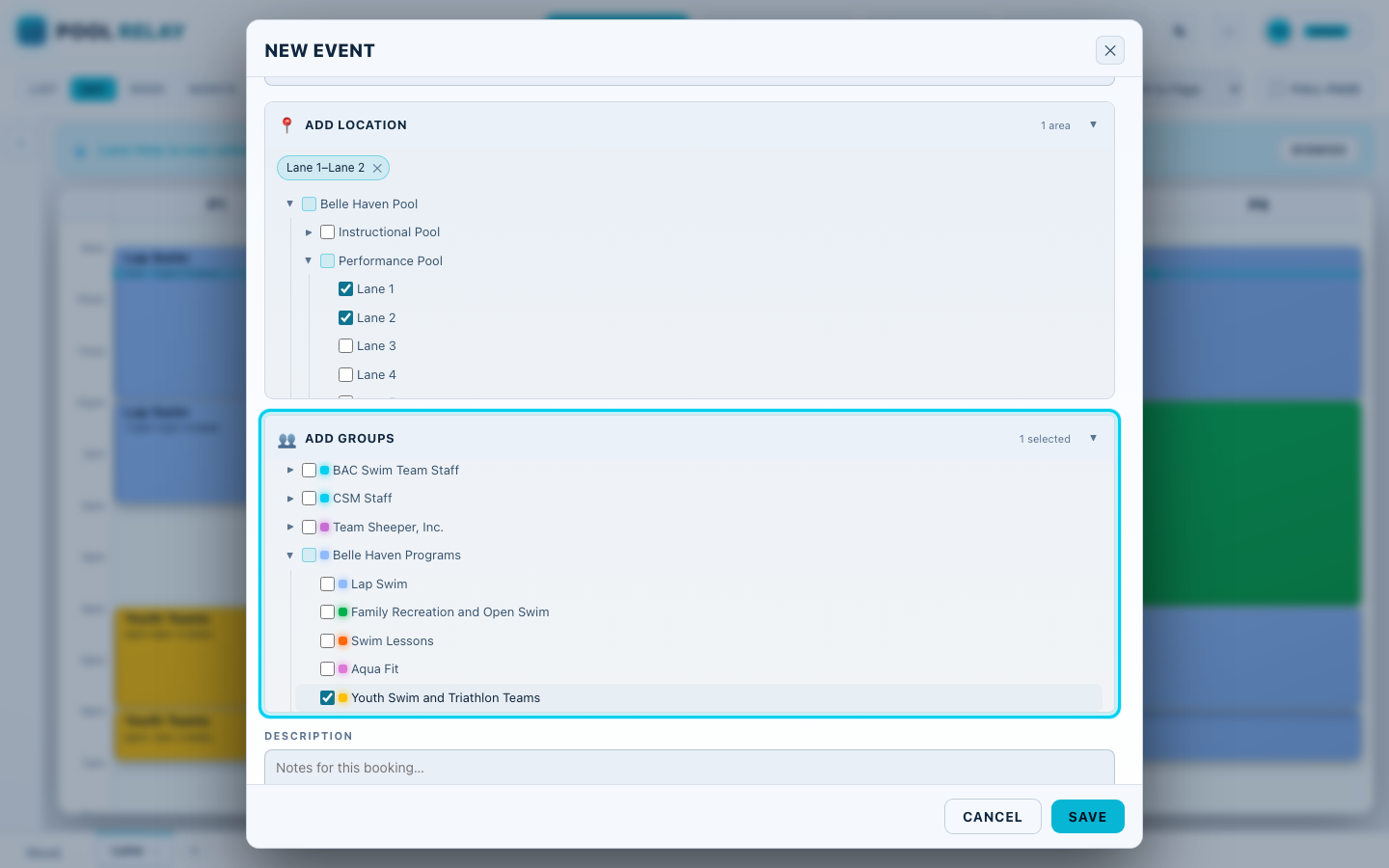
Open 👥 Add groups and tick who the water is for — the Youth Swim and Triathlon Teams. Every booking needs at least one location and one group: the group colors the block on the calendar, drives the Key, and decides who is told about a change by email.
15Save, and watch the gap close
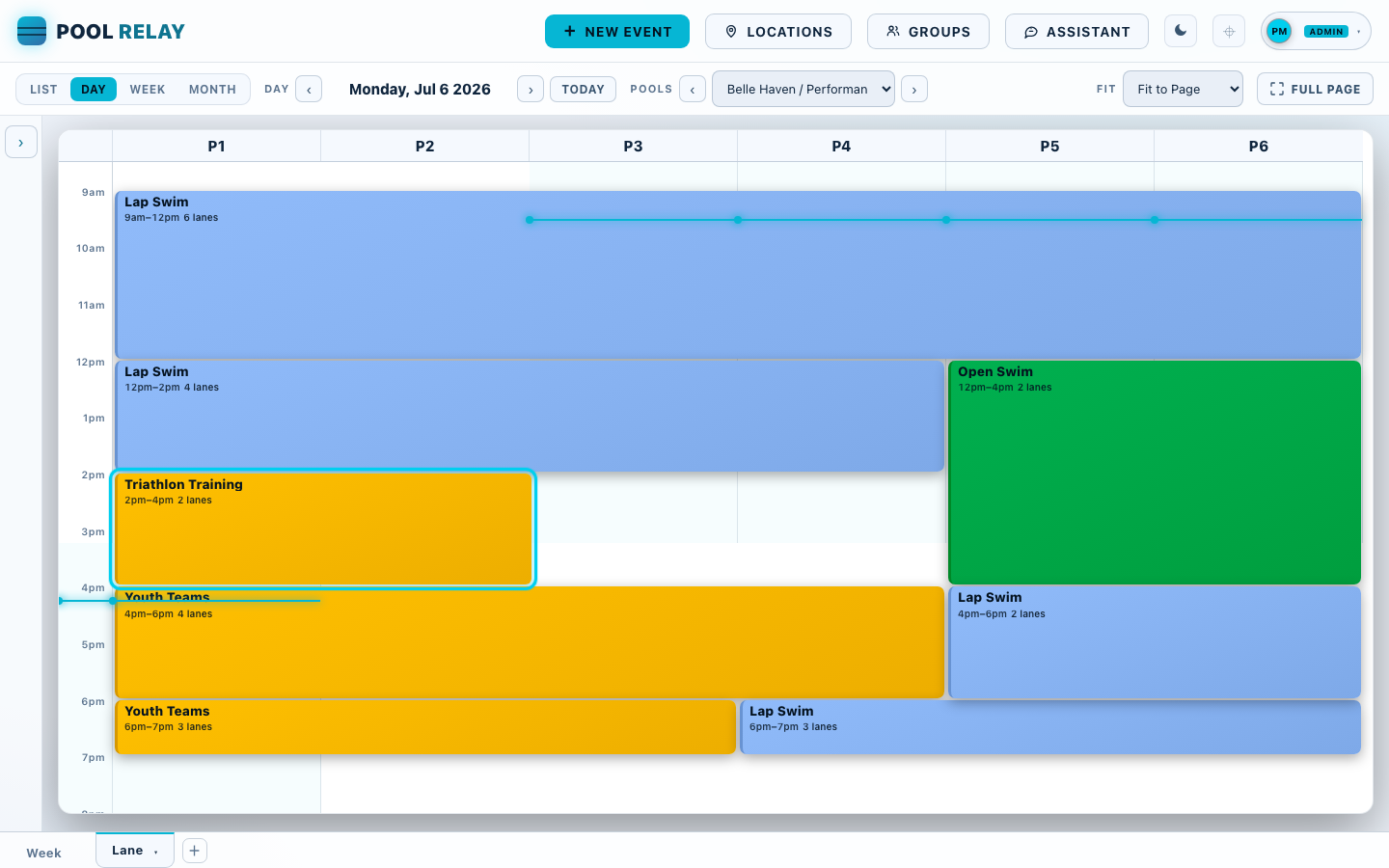
Save. The squad's session drops into the freed water and the unbooked-time notice retires itself — the water is spoken for again. Lane 3 and Lane 4 are still open from 2pm, which the next step puts to use. If you only had View rights on any location or group you picked, Save would instead send this to an editor to accept or decline.
16Double-book it by accident
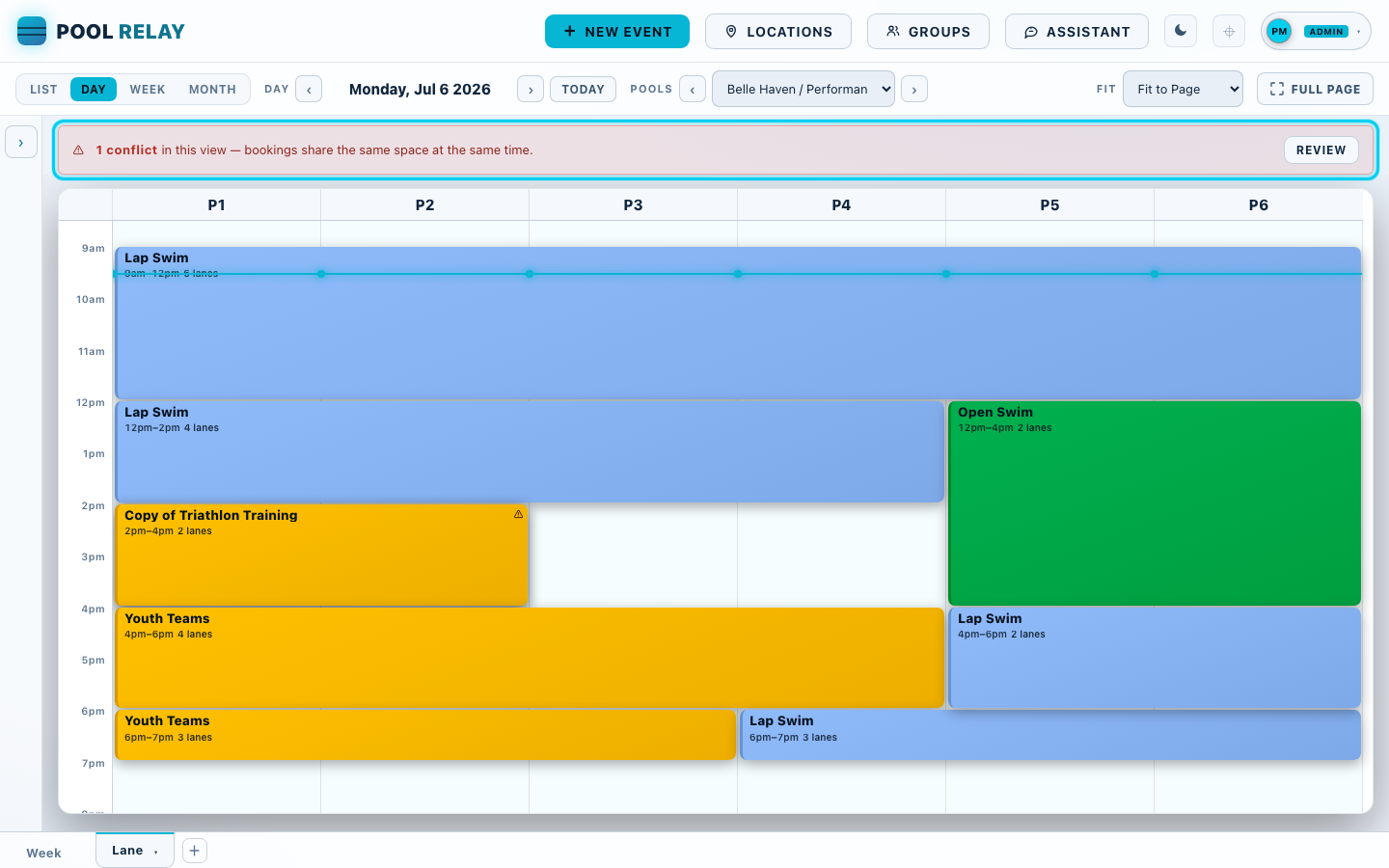
Suppose a second squad is booked into the same lanes at the same time. Pool Relay flags the clash the moment it is saved: a banner counts the conflicts and every block involved pulses. Overlaps are worked out by lane and time through the whole hierarchy — a two-lane booking collides with a whole-pool booking, and a booking on the pool collides with any lane in it. Click Review.
17Resolve the conflict
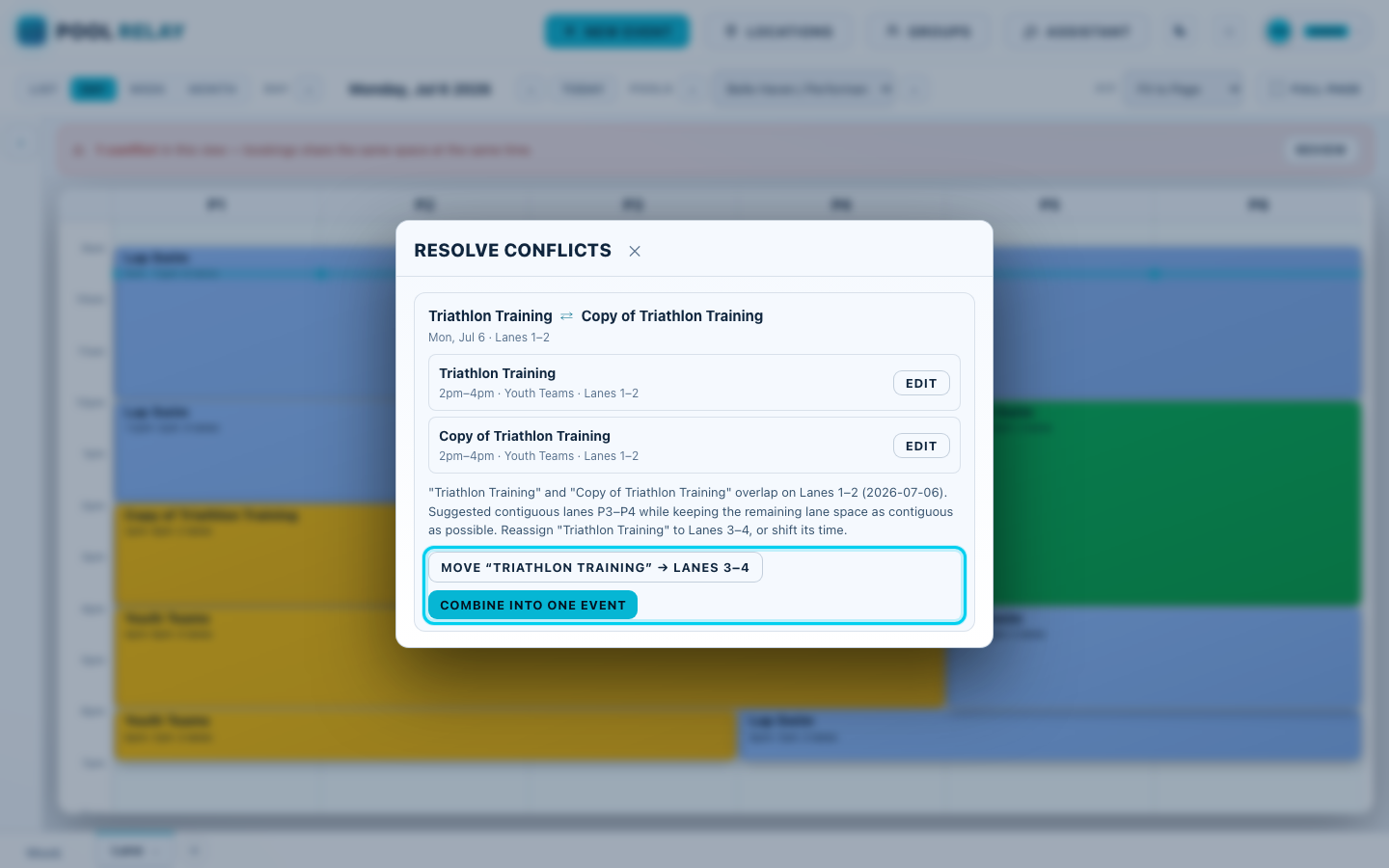
Review opens the resolver with the fixes already worked out. Move to free lanes shifts one booking onto the lanes still open in the same pool — Lane 3 and Lane 4 — keeping each group's lanes together and next to where they already swim. Combine into one event fuses both into a single booking covering both groups, which is the right answer when two programs genuinely share the water. Either fix is applied through the normal edit path, so it is audited and reported like any other change.
18See it resolved
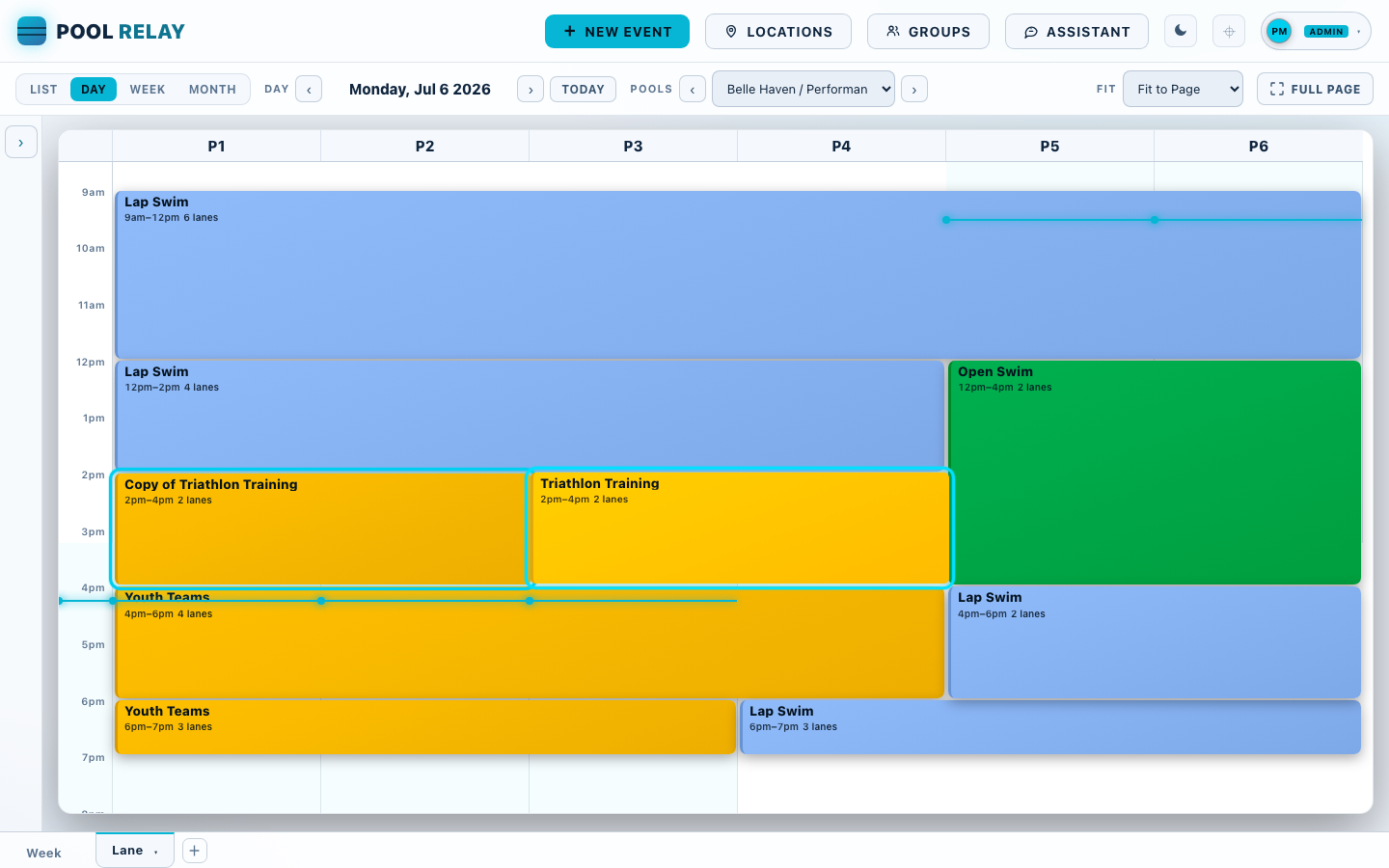
Take the first fix and the clash is gone: the two sessions now sit side by side on their own lanes, each group's lanes still together. The resolver confirms there is nothing left to fix and the conflict banner clears itself. Nothing was lost — both bookings are still there, in water that is actually free.
19Cancel a booking
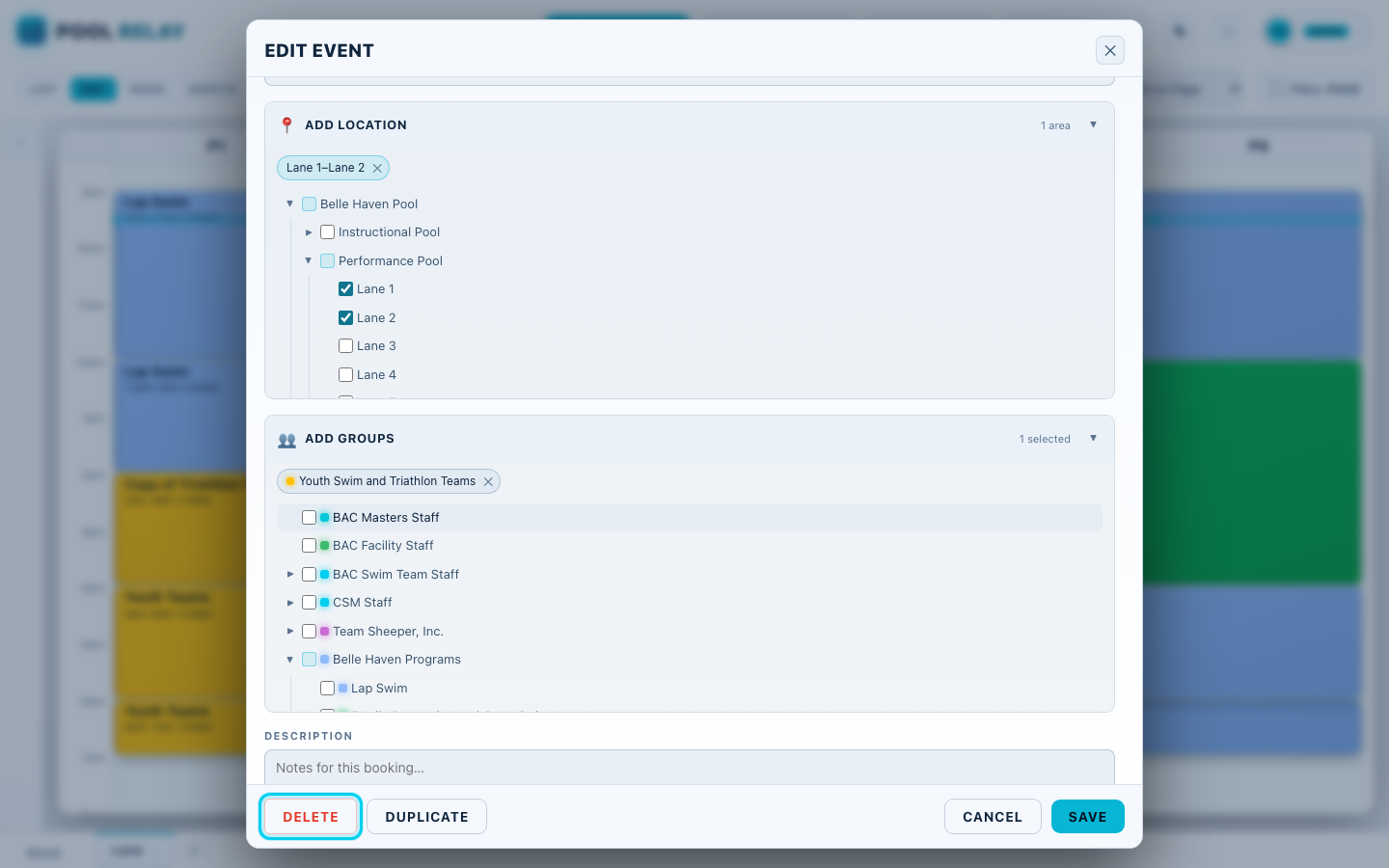
To cancel a session, open it and click Delete. Pool Relay asks once to confirm before removing anything, then records it in the audit trail so everyone with access to those lanes hears about it by email.
20And the water it leaves empty
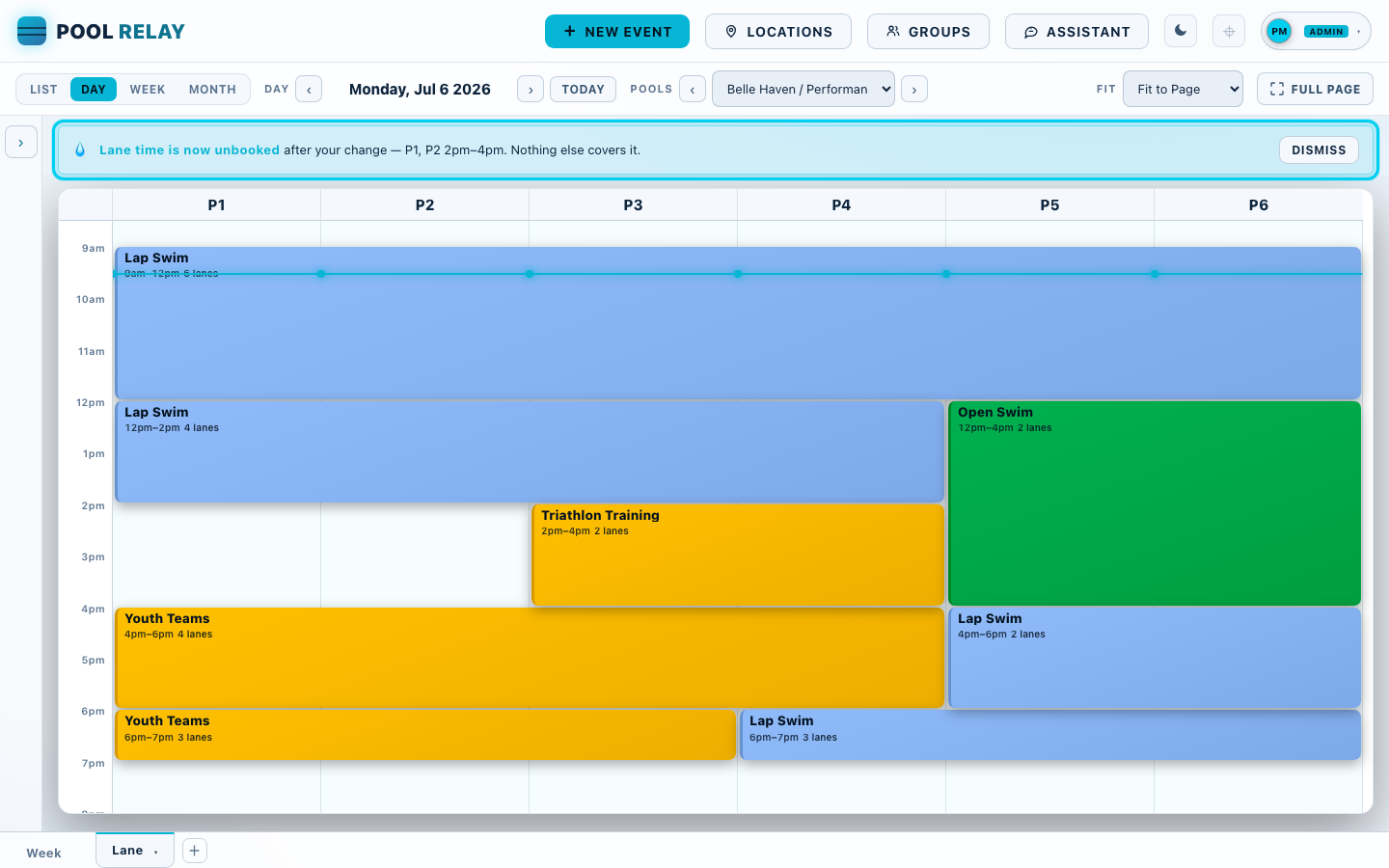
The session comes off the calendar — and Pool Relay immediately tells you what that left behind: those lanes are unbooked again, and nothing else covers them. That is the whole idea. A double booking has a second booking to notice it; empty water has nobody, so Pool Relay speaks up itself, every time you shorten, shrink or cancel.